 Backseat
Mark what to fix.
Explain it out loud.
Point at what to fix while you talk. Backseat pairs each mark with what you said and hands both to your AI coding tool.
For example“Make this button bigger. Move the logo to the center.”
Free · open source (MIT) · Windows 64-bit · v0.5.0, about 243 MB
The installer is not code-signed yet, so Windows may warn the first time you run it. How to install
Also available: a macOS and Linux preview.
A 20-second summary recorded from the real app, without sound. The version with sound is the 50-second demo.
Here is what got fixed
We circled the button, drew a number and an arrow on the logo, said “This login button is too small. Make it about one and a half times bigger. Move the logo to the center.”, and sent it to Codex CLI.
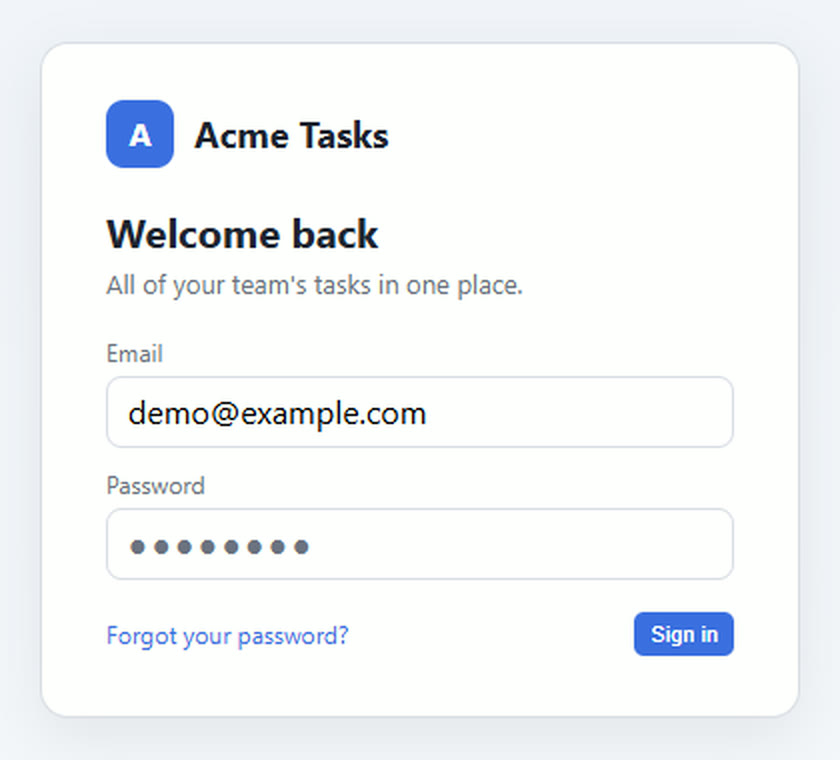
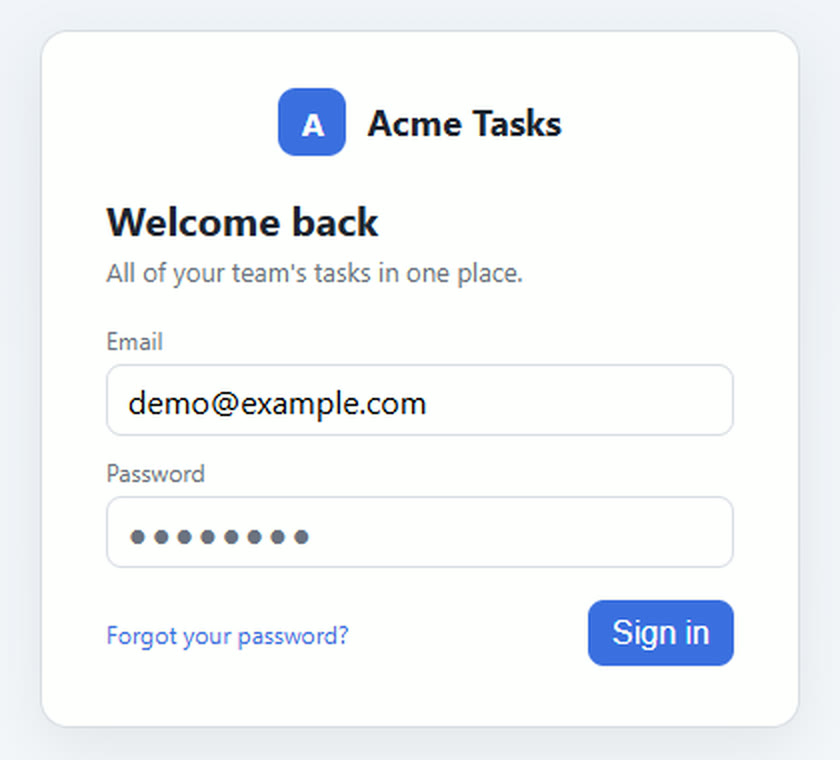
This is the edit Codex made from the marks and the explanation. Both pictures come from one real Codex CLI run, cropped at the same position and scale. Backseat only delivers the request; it does not change your code.
How it works
First, open the project you want to fix in your AI coding tool.
-
Capture the screen
On the screen you want fixed, press the hotkey and drag over the part to show. The editor opens right away.
Region Ctrl+Shift+A · Window Ctrl+Shift+W
-
Mark it up and explain
Mark what to fix with arrows, numbers, a pen or text. Start recording and talk while you draw: each sentence is paired with the mark you were drawing at the time.
Voice is optional. You can send just a one-line note, or only the marks.
Record M · Speech is turned into text on your PC.
-
Hand it to your AI
Press Send and Backseat pastes it into the input box of the AI window you used last. Check what went in, then submit it yourself in that window.
Send Enter · What goes in depends on the destination.
Watch each step (3 clips)
Which AI tools does it work with?
Send pastes into the AI tool window you used last. To send somewhere else, click the destination at the top right of the editor or press Ctrl+T.
Checked from capture to the AI's finished edit: Codex CLI
- Verified We saw the AI read what was sent and finish the edit.
- Partly verified Only some steps, such as the paste, were tried, and there are limits.
- Not verified Actual delivery not tried yet.
| Tool | Designed to receive | Level | What was tried, and limits |
|---|---|---|---|
| Codex CLIterminal | Request line and file paths | Verified | From capture to Codex fixing the page. |
| ChatGPT desktop app | Image and request line | Partly verified | In the test, only the text went in; the image did not attach. |
| ChatGPT in a browser tab | Image and request line | Partly verified | Tried up to the paste. The AI's reply and edit were not checked. |
| Claude desktop app | Image and request line | Partly verified | Tried up to finding the input box; nothing was pasted. |
| Claude Codeterminal | Request line and file paths | Not verified | Recognized as a terminal; delivery not tried. |
| Claude, Gemini, Copilot in a browser tab | Image and request line | Not verified | Only a rule that recognizes the tab title. |
| Cursor, VS Code, Windsurf, Zed | Request line and file paths | Not verified | Only a rule that recognizes the window. |
These tests were run on Windows 10. For tools marked not verified, actual delivery has not been checked. Seeing the paste land is a different level from seeing the AI read it and finish the edit.
- Backseat only pastes. You submit it yourself in that AI window.
- If it can't confirm the input box, it leaves everything on the clipboard. Click the input box and press Ctrl+V.
- It doesn't paste into an input box it identifies as a password field.
More on what gets sent and where
What goes in?
- Terminals and code editors get a request line with the file paths of the marked-up image and the request file (brief.md). The agent has to be able to read files on your PC.
- Chat apps and browser tabs are designed to get the marked-up image and the request line, because a chat AI can't open files on your PC.
- If you send without drawing or saying anything, only the image goes (only its path, for a terminal), with no request line.
- An agent set up over MCP can fetch captures from Backseat itself. This is optional. MCP setup
How is the destination chosen?
- Only an AI tool window you used recently is chosen automatically. The web page you just captured and messengers are never chosen automatically.
- You can still send to a messenger or any other window by picking it from the list. If no destination is set, nothing is pasted and everything stays on the clipboard.
- Right before pasting, it checks the input box under the cursor. If Windows reports a password field, or it can't tell that it is an input box, it stops. It can't recognize a password prompt inside a terminal.
- Under the editor you see only the steps it actually went through: saved, on clipboard, destination checked, input box checked, paste command sent. If it stopped, it tells you why and what to do next.
The sign-in page was picked by hand, but Backseat stops because the cursor is in a password field. Other window names in the list are blurred.
50-second demo
From start to finish: what you capture and explain goes to the AI window, and Codex fixes the page. With sound.
The real app, driven by a script and recorded. The voice is text-to-speech. Music: Bertsz, “Corporate company introduction video” (CC0). Korean-caption version
Install
Checked on Windows 10 (64-bit). Windows 11 has not been tried yet.
-
Download the installer
Get
Backseat.Setup.0.5.0.exe(about 243 MB) from the GitHub release page. Official builds are published only on this repository's releases. -
Run the installer
The installer isn't code-signed yet, so “Windows protected your PC” may appear. It means Windows can't verify the publisher. If you got the file from the release page above and want to continue, click “More info”, then “Run anyway”.
-
Find it in the notification area and start
 When this icon appears in the notification area at the right of the taskbar, it is ready. Hovering it shows “Backseat — Ctrl+Shift+A to capture”. If you don't see it, click ^ (show hidden icons) on the taskbar.
No big window opens, and that's normal. On the screen you want fixed, press Ctrl+Shift+A to start. Clicking the icon also starts a capture.
The first time you record your voice, it downloads a speech recognition model (about 0.9 GB) once. If you don't use voice, it isn't downloaded.
It starts each time you sign in to Windows; you can turn that off with “Start at login” in the icon's menu.
How to verify the download (optional)
This checks that your file is the same file published on the release page. Run this in PowerShell:
Get-FileHash "$env:USERPROFILE\Downloads\Backseat.Setup.0.5.0.exe" -Algorithm SHA256SHA-256 of v0.5.0: 8B5E1225237FCC0E57CDFCBFF7F0D4988248C9FF3E7FFAA5A8B1635BC17F033B
If the values match, you have exactly the published file. That does not prove the program is safe. If they differ, don't run it: download it again or report it.
macOS and Linux preview Preview
Capture, marking up, voice transcription, saving and MCP work as on Windows. Picking the destination, checking the input box and pasting are Windows-only, so in the preview Send puts everything on the clipboard: paste it in your AI window yourself (macOS: Cmd+V, Linux: Ctrl+V). Window capture and scrolling capture aren't available either.
- macOS (Apple Silicon): Download the dmg (about 221 MB). Move the app to Applications. It isn't notarized by Apple, so if macOS blocks it the first time, click “Open Anyway” in System Settings → Privacy & Security. Allow Screen Recording on the first capture and the microphone on the first recording.
- Linux (x64 AppImage): Download the AppImage (about 447 MB). Make it executable (
chmod +x) and run it. The tray icon may need AppIndicator support in your desktop, and global shortcuts may not work in a Wayland session.
How far it was checked: only the packages' self-test (capture, editor, clipboard, saving) on GitHub's macOS and Linux build machines. Not tried on a real Mac or Linux PC yet. Version v0.6.0-preview.1 · release page · report a problem.
FAQ
What does voice download the first time?
The first recording downloads a speech recognition model once (Whisper small, about 0.9 GB). After that, speech is turned into text on your PC. Audio goes to a cloud speech service only if you set one up. What Backseat pastes into an AI window is handled by that AI service.
The transcript is wrong. What can I do?
The transcribed text can't be edited in the editor. Instead:
- If a word or two is wrong, type the correction in the one-line note at the bottom of the editor and send it along.
- If much of it is wrong, record again (M). The new recording replaces the old one and its transcript, and resets any links you changed.
The request file also tells the agent that the transcript is automatic, so numbers and names may be wrong.
A sentence is linked to the wrong mark
Open the timeline (L) and drag the sentence's bar in the voice lane onto the bar of the mark it belongs to. Drop it on empty space in the voice lane to go back to automatic linking.
Nothing was pasted
If it can't confirm the input box, it doesn't paste and leaves everything on the clipboard. Click the AI window's input box and press Ctrl+V. The reason it stopped is shown under the editor. This happens often in apps with several input boxes, such as the Claude and ChatGPT desktop apps.
Why do I submit it myself?
By default Backseat pastes but does not submit, so you can check what went in first. You can turn on “Press Enter after sending” in the tray menu, but it only presses Enter when both the destination and the input box were confirmed.
What does “Paste attempted” in the editor mean?
It means the paste command was sent. Backseat can't tell whether the image and text actually went in, so check the AI window. When an agent connected over MCP fetches the capture, the editor says “The AI fetched the capture” instead.
Where are captures kept?
Every send saves the marked-up image, the original screenshot, the request file (brief.md), and any recording and transcript under Backseat\sessions in your Pictures folder.
Which operating systems are supported?
The full version is for Windows 64-bit and was checked on Windows 10; Windows 11 hasn't been tried yet. For macOS (Apple Silicon) and Linux (x64) there is a preview without automatic paste, not yet tried on a real Mac or Linux PC.
Download for Windows
v0.5.0 · about 243 MB · Windows 64-bit · free · open source (MIT) · How to install